Free Church Budget Template Excel for Your Ministry
Jun 26, 2023

A well-crafted church budget template in Excel isn't just a spreadsheet; it's the financial backbone for faithful stewardship. It cuts through the complexity of church finances and gives you a clear, actionable plan for your ministry. Ready to get started? We have a free downloadable template waiting for you.
Why Your Church Needs a Real Budget in Excel
Let's be honest: managing a church's money is a world away from balancing a personal checkbook. It's a profound act of worship and the very foundation that allows ministry to happen. Without a clear financial picture, even the most Spirit-led vision can stall out. A budget built specifically for a church in Excel helps you handle the unique financial rhythm of ministry, from tracking the ebb and flow of weekly offerings to making sure designated gifts are honored properly.
This isn't just about counting pennies. It's about creating a roadmap that connects your financial resources directly to your spiritual goals. When you can confidently see where every dollar is going, you empower your leadership to make smart, strategic decisions that expand your reach. It also allows you to answer questions from the congregation with complete transparency, building a culture of trust and shared ownership.
Bringing Structure to Your Stewardship
Sure, you could start with a blank spreadsheet, but a purpose-built template gives you an incredible head start. It comes with the categories and structure most churches need, saving you from hours of frustrating setup. Think of it as starting your building project with a professionally drawn blueprint instead of a blank piece of paper.
Using a specialized template right out of the gate brings a few key advantages:
Instant Clarity: It organizes everything into logical buckets—staff salaries, ministry programs, facility costs, missions—making your financial story simple to understand at a glance.
Smarter Planning: By laying out the entire financial year, you can anticipate big-ticket items like a new roof or a major outreach campaign, avoiding those stressful, last-minute funding crises.
Built-In Accountability: A clear, organized budget is your best accountability tool. It demonstrates to your board, finance team, and the entire congregation that you are stewarding their gifts with integrity and care.
A well-managed budget doesn't restrict your ministry; it unleashes it. By prayerfully planning how every dollar will advance the Kingdom, you create a stable foundation for growth and effective outreach.
To give you a clearer picture of what to expect, here's a breakdown of the essential components you'll find in a good church budget template.
Key Components of a Church Budget Template
Category | Description | Example Line Items |
|---|---|---|
Income | All sources of revenue the church receives. | Tithes & Offerings, Designated Gifts, Building Fund, Rental Income |
Personnel Expenses | Costs related to paying staff and clergy. | Salaries, Housing Allowances, Health Insurance, Payroll Taxes, Retirement |
Ministry & Program Expenses | Funds allocated to specific ministry departments. | Children's Ministry Supplies, Youth Group Events, Worship Team Resources, Outreach |
Facilities & Operations | Expenses for maintaining the church building and grounds. | Mortgage/Rent, Utilities (Electric, Gas, Water), Insurance, Maintenance & Repairs |
Administrative Costs | General overhead required to run the church office. | Office Supplies, Software Subscriptions, Bank Fees, Postage, Phone/Internet |
Missions & Benevolence | Funds designated for external giving and support. | Support for Missionaries, Local Charity Donations, Benevolence Fund |
This structure ensures nothing falls through the cracks and gives you a comprehensive view of your church's financial health.
From Simple Records to Powerful Stewardship
Using Excel for church budgeting has become the standard for a reason. Recent studies show that over 70% of churches in the United States and Canada rely on spreadsheet software for their annual financial planning. A major piece of that puzzle is personnel—the average church allocates around 52% of its budget to staff compensation, a critical category that a good template will help you manage carefully. You can dive deeper into these typical church budget percentages to see how you compare.
Ultimately, a robust church budget template in Excel does more than just track numbers. It’s the tool that translates your ministry vision into a practical, financial reality. It ensures every gift is honored, accounted for, and put to work fulfilling your church's unique calling.
Getting Your Budget Template Set Up for Success
You've got the church budget template excel file downloaded. Great! Now, it's time to roll up our sleeves and make it truly yours. A blank template is just a starting point; its real value comes alive when you mold it to fit your church’s unique financial reality. Think of this initial setup as laying the foundation for a house—get it right, and everything else will stand strong for the entire year.
First things first, let's define your church’s fiscal year in the template. Most churches I've worked with follow a standard January-December calendar, but yours might be different. Make sure this is set correctly from the get-go. It’s a small detail that has a huge impact on making sure all your date-sensitive calculations, like year-to-date reports, are spot on.
With the dates set, you'll need to plug in your beginning balances. This just means entering the cash you have on hand in each of your church's bank accounts on the very first day of your fiscal year. It's a non-negotiable step for keeping your cash flow and bank reconciliations accurate down the road.
This process flow shows how a well-built Excel template can turn the chaos of financial management into a clear roadmap for ministry.
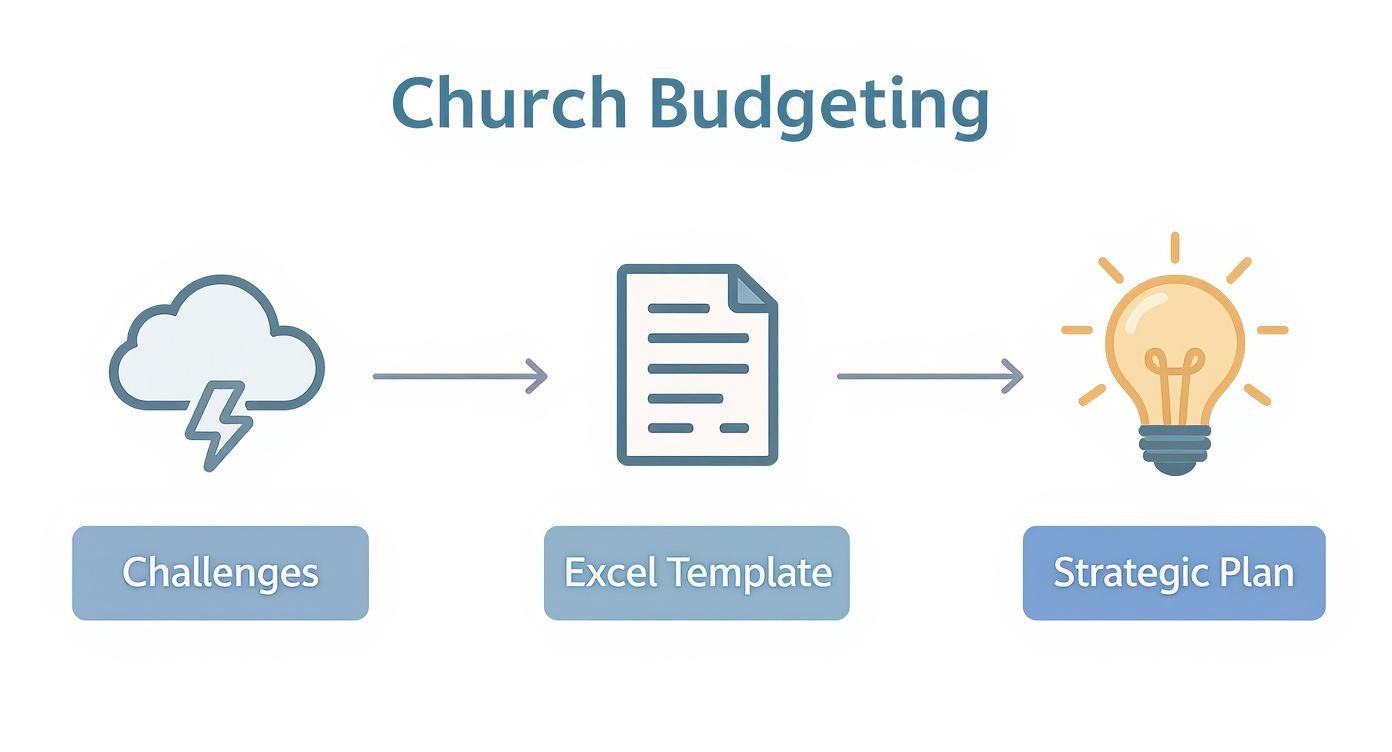
As you can see, the template acts as a bridge, connecting the complex details of church finance to the clear vision you need for effective planning.
Customizing Your Chart of Accounts
The absolute core of your budget template is the Chart of Accounts (COA). If that term sounds intimidating, don't let it be. It's just a complete, organized list of all your income and expense categories. I always tell people to think of it as the filing cabinet for your church's finances. A messy filing cabinet makes finding anything a nightmare; a clean one makes reporting a breeze.
Spend some real time here. Don't just accept the default categories. Tailor them to reflect how your church actually brings in and spends money.
Income Accounts: Instead of a single "Donations" bucket, get specific. Create separate lines for things like "General Tithes & Offerings," "Building Fund Contributions," "Missions Giving," and maybe even "Facility Rental Income."
Expense Accounts: Dig deeper than broad categories. "Utilities" is okay, but "Electricity," "Water," and "Gas" is much better. For staff costs, break it down into "Pastor Salary," "Admin Staff Wages," "Payroll Taxes," and "Health Insurance."
A detailed COA provides incredible clarity, showing you exactly where money is coming from and where it's going. The principles for churches are very similar to those for other ministries, so if you need more guidance, this is a great resource on creating a chart of accounts for nonprofit organizations.
Structuring for Fund Accounting
For any church, one of the most vital steps is building the budget to handle fund accounting. This is simply the practice of keeping money that's restricted for a specific purpose—like a building fund or a missions trip—separate from the general funds you use for everyday operations.
In church finance, fund accounting isn't just a best practice—it's a matter of integrity. It ensures that every dollar given for a specific purpose is honored and used exactly as the donor intended, building trust and transparency with your congregation.
So, how do you do this in Excel? It's surprisingly straightforward. Just add a new column next to your transaction lines and label it "Fund." In this column, you can tag each entry as "General," "Building," "Missions," or whatever other designated funds you manage.
This one simple addition is a game-changer. It lets you filter, sort, and create reports that show the precise financial health of each fund. More importantly, it prevents you from accidentally using restricted money for general operating costs—a mistake that can seriously damage trust. This foundational work transforms your spreadsheet from a simple tracker into a powerful tool for stewardship.
Making Your Budget Work For You with Formulas
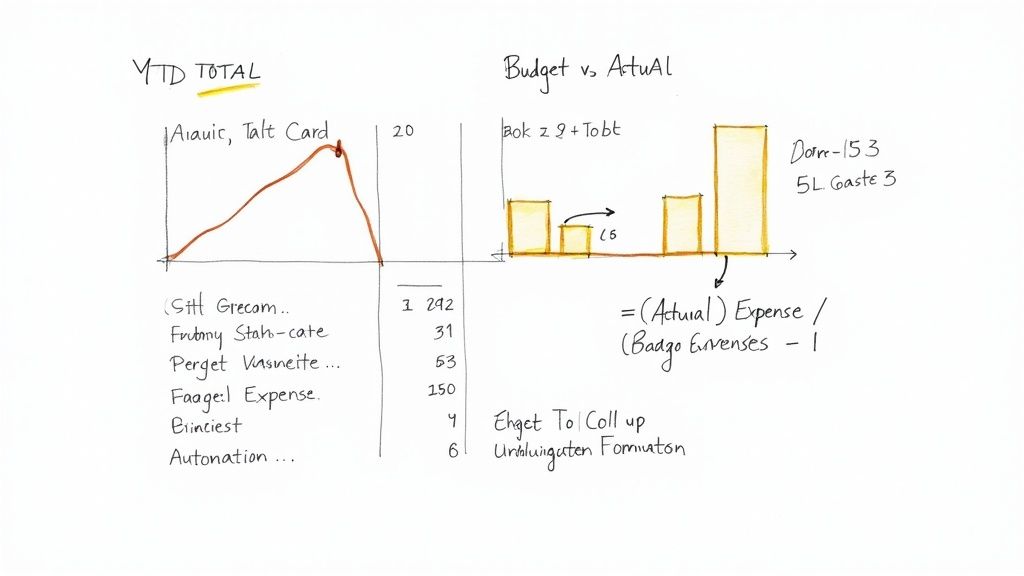
Alright, your church budget template excel file has a solid structure. Now for the fun part: making it intelligent. This is where your spreadsheet transforms from a static list of numbers into a dynamic financial dashboard that actually guides your ministry.
We're going to move beyond just plugging in numbers. The goal here is to get real-time insights that help you and your leadership make wise stewardship decisions.
I'll skip the basics like the =SUM function—I'm sure you've got that handled. Instead, we'll dive into the formulas that give you a much deeper story, turning raw data into a clear picture your finance committee can actually use. Let's get these formulas to do the heavy lifting for you, month after month.
Calculating Rolling Year-to-Date Totals
Tallying up columns by hand is not only a drag, but it's also where mistakes love to hide. A much smarter way is to set up a formula that automatically calculates your year-to-date (YTD) totals for both income and expenses. This gives you an instant, rolling snapshot of your financial health at any point in the year.
The SUMIF function is a workhorse for this. Picture your monthly actuals laid out in columns. Let's say January's actual expenses are in cell B5, February's in C5, March's in D5, and so on.
To get a running YTD total for March (in column D), the formula is =SUM($B$5:D5).
Those little dollar signs ($B$5) are the key. They lock the starting point of your sum to January's cell, creating an "absolute reference." As you drag this formula across to April, May, and beyond, it will always sum everything from January up to the current month. No manual adjustments needed.
Automatically Measuring Your Budget Variance
One of the most important questions a budget can answer is, "How are we actually doing compared to what we planned?" Calculating this for every single line item manually is a headache waiting to happen. Instead, let's build a variance column that does the work for you.
Variance simply shows the difference between your budgeted amount and your actual spending. You can show it as a dollar figure, but I find a percentage is far more insightful.
To calculate the percentage variance, the formula is surprisingly simple: =(Actual_Expenses / Budgeted_Expenses) - 1
Let's say your actual mission's expense for January was $950 against a budget of $1,000. The formula =(950/1000)-1 spits out -0.05. Just format that cell as a percentage, and it will proudly display -5.0%, instantly telling you that you were 5% under budget. This kind of visual cue is invaluable for spotting trends early.
A good variance report isn't about pointing fingers; it's about gaining clarity. It helps you see where your ministry is being exceptionally frugal or where unexpected needs are popping up. This lets you make proactive adjustments instead of being forced into reactive fixes down the road.
While Excel is a fantastic tool, there comes a point where growing churches might need something more robust. If tracking multiple restricted funds becomes a chore, it might be time to explore dedicated accounting software for small churches. Many of these systems are built from the ground up to handle these calculations automatically.
Showing the Percentage of the Total Budget
One last powerful metric is understanding where the money is really going. Seeing what percentage of the total annual budget each line item represents helps keep spending priorities aligned with ministry goals.
For this to work, you'll need one cell that contains your total annual budgeted expenses. Let's pretend that grand total is in cell Q10.
Now, for any individual expense line—say, the Youth Ministry Budget in cell Q25—the formula is just: =Q25/$Q$10
See those dollar signs again? They lock the formula onto the total budget in $Q$10. When you copy this formula down the column for every other expense line, each one will be correctly divided by the same total budget figure.
Suddenly, it becomes crystal clear that staff salaries make up 52% of the budget, while facility costs are 15%. This kind of perspective is essential for healthy financial conversations.
Managing Designated Giving and Restricted Funds
Properly handling designated giving isn't just good bookkeeping; it's a cornerstone of trust with your congregation. When a family gives specifically to the youth mission trip or the building fund, they're placing their faith in you to honor that intention. Your church budget template excel file is the tool that makes this process transparent and accountable.
The single biggest pitfall is letting these restricted funds co-mingle with your general operating budget. Even with the best intentions, it's a recipe for confusion and, worse, misallocation. The most straightforward way to prevent this in Excel is to build a separate system for tracking each and every restricted fund.
Isolating Funds for Clarity
You've got a couple of solid options for keeping these funds separate within your spreadsheet. One way is to add dedicated columns on your main transaction sheet for each major fund—think "Building Fund Income" and "Building Fund Expense." This keeps everything on one page, but it can get pretty cluttered if you're juggling more than a few funds.
A much cleaner method is to create entirely separate tabs for each designated fund.
Create a New Tab: Just right-click on an existing tab, select "Insert," and then choose "Worksheet." Give it a clear name, like "Building Fund."
Structure the Tab: To keep things consistent, copy the basic income and expense layout from your main budget sheet over to the new tab.
Track Activity: From here on out, log every donation and every expense tied to that specific fund only on its dedicated tab.
This tab-based approach essentially creates a distinct "mini-ledger" for each restricted purpose. It makes it practically impossible to accidentally dip into designated money for general operating costs.
Handling restricted funds properly is the bedrock of financial transparency. It assures your congregation that every specified gift is honored, reinforcing their confidence in leadership and encouraging continued generosity.
A Real-World Scenario: The New Roof Campaign
Let's walk through a classic example. Say your church launches a "New Roof Fund" campaign. The first thing you do is create a new tab in your Excel template just for this purpose.
A designated offering comes in for $5,000. You record that as income on the "New Roof Fund" tab. That money now sits in the fund's balance, but it never touches the income line of your main operating budget. A few weeks later, you pay the roofing contractor an initial deposit of $2,500. You log that as an expense on the same tab. The fund's available balance is now $2,500, and your general fund remains completely unaffected. This clear separation creates a perfect, easy-to-follow audit trail.
This level of detail is exactly what builds trust and enables smart financial decisions. It's also why having a good system is so critical for tracking recurring donations, which now represent 37% of all church giving. You can discover more important giving trends and statistics to see how your church compares. Methodical tracking like this ensures every dollar is accounted for, from the moment it's given to the final payment.
Creating Financial Reports Your Congregation Understands
A budget is so much more than just a bunch of numbers in a spreadsheet. It’s a story—the story of your ministry in action. While the raw data in your church budget template excel file is critical for keeping things straight, it’s often too much for most people to digest. The real magic happens when you translate that detailed information into clear, compelling reports for different groups, from the finance committee to the entire church body.
One of the best ways I've found to do this is by creating a summary "Dashboard" tab right within your Excel workbook. Think of it as the 30,000-foot view. It pulls the most important numbers from your detailed worksheets and presents them visually. Instead of getting lost in endless rows of data, your leadership team can see charts and graphs that answer the big questions in a heartbeat: Is giving on track? Which ministry is using the most resources?
Different Reports for Different Audiences
You wouldn't tell the same story the same way to a group of accountants and a group of first-time visitors, right? The same principle applies to financial reporting.
Your finance committee needs to get into the weeds. They’re the ones who need the full budget-vs-actual report, complete with variance percentages for every single line item. This is their tool for deep analysis, for asking tough questions, and for providing the detailed oversight that good stewardship demands.
The congregation, on the other hand, needs the big picture. For a church-wide meeting, a simplified, one-page summary is infinitely more effective.
For the Finance Committee: Give them the detailed, multi-page reports. They need every line item, all the variance calculations, and any notes you have on significant differences.
For the Congregation: Craft a visual, single-page summary. Focus on total income versus total expenses, maybe a pie chart showing how spending is broken down by major categories (like Personnel, Ministries, and Facilities), and a short, simple paragraph explaining the overall financial health of the church.
Transparency isn't about dumping every number on every person. It's about giving the right information to the right audience in a way that makes sense to them. This is how you build trust and get everyone engaged in shared stewardship.
Building a Visual Dashboard in Excel
Don't let the word "dashboard" intimidate you; it’s easier to build than you think. You’re essentially just creating a new tab and using simple formulas to link to key summary cells from your main budget sheet. From there, you can use Excel’s built-in charting tools to make those numbers pop.
Here’s a fantastic example of how you can arrange charts to create a dashboard that tells a clear story at a glance.

A visual layout like this instantly shows revenue and expense trends without making anyone wade through pages of data. Visuals make complex financial information accessible to everyone, no matter their comfort level with spreadsheets.
To dig deeper into tailoring these summaries, check out our complete guide to effective church financial reporting. When you get this final piece right, your budget stops being just a tracking tool and becomes a powerful way to communicate vision and align your entire ministry.
Common Questions About Church Budgeting in Excel
Even with the best Excel template, questions are bound to come up once you start using it day-to-day. As you get into the rhythm of managing your church's finances, you'll run into specific situations that need a clear answer. Here’s some practical advice for the most common challenges I see church treasurers and administrators face.
Think of this as your go-to troubleshooting guide. It's here to help you solve those little issues before they snowball into bigger problems.
How Do I Handle Mid-Year Budget Adjustments?
Let's be honest: a budget rarely makes it through a full year without a single tweak. An unexpected repair comes up, or maybe giving trends shift. When that happens, you need a way to adjust your numbers without losing sight of your original plan.
The trick is to avoid simply typing over your original budget figures. Instead, add two new columns next to your original budget: one called ‘Adjusted Budget’ and another for ‘Adjustment Notes.’
When you need to make a change, put the new number in the ‘Adjusted Budget’ column. Then, in the notes column, briefly explain why. Something like, "Increased utility budget by 10% after summer rate hike" is perfect. Finally, just update your variance and percentage formulas to compare your actuals against this new ‘Adjusted Budget’ column. This keeps your records crystal clear, showing both your original goals and the financial reality you're navigating.
What Is the Best Way to Protect the File from Accidental Changes?
We've all been there. One wrong click or an accidental keystroke, and a critical formula is gone. Suddenly, your whole budget is thrown off, and you're left hunting for the mistake. Thankfully, Excel has some great built-in tools to prevent this.
First, go through your spreadsheet and unlock only the cells where you need to enter data (like monthly income and expenses). You can do this by right-clicking the cells, choosing ‘Format Cells,’ and unchecking the ‘Locked’ box on the ‘Protection’ tab.
Once you’ve done that, head to the ‘Review’ tab and click ‘Protect Sheet.’ It’s a good idea to set a password. This simple action locks down all your formulas and structural cells, so no one can accidentally break them. You and your team can still enter the monthly numbers you need, but the core logic of the budget stays safe.
Protecting your worksheet isn’t about restricting access; it's about preserving integrity. It ensures that the carefully built logic of your budget remains intact, giving you confidence in the numbers you present to your leadership and congregation.
Can This Template Track Payroll and Staff Benefits?
Absolutely. While you want your main budget summary to stay clean and high-level, you can easily create a separate, dedicated tab for payroll details. Just add a new worksheet and name it something like ‘Payroll Details.’
On this new sheet, you can build a simple table. List each staff member in their own row, then create columns for all the moving parts: gross salary, housing allowance, health insurance, retirement contributions, and any payroll taxes. A final column can sum everything up to show the total cost for each employee.
Then, back on your main budget sheet, the ‘Staff Compensation’ line can be linked directly to this detail tab. A simple formula like =SUM('Payroll Details'!H:H) will pull the grand total over automatically. This keeps your primary budget uncluttered while all the sensitive, detailed payroll information is tracked accurately and is just a click away.
At Grain, we believe that true fund accounting shouldn't require complex workarounds in a spreadsheet. Our software is built from the ground up to handle designated funds, automated bank reconciliation, and clear reporting, so you can focus on ministry, not manual data entry. Discover a better way to manage your church’s finances at https://www.grainledger.com.