QuickBooks Download Mac: Easy Install & Activation for 2026
Quickbooks download mac - Get your quickbooks download mac done right! Our 2026 guide provides clear, step-by-step instructions to successfully install & activa
Let's get this straight from the start: the only place you should ever get your QuickBooks download for Mac is directly from the official Intuit website. I can't stress this enough. Going through third-party sites is a massive security risk, and you're essentially handing over the keys to your financial kingdom.
About Grain Ledger: This guide includes Grain Ledger, church fund accounting software built for designated gifts and ministry funds. It connects giving platforms (Planning Center, Pushpay, Tithely, Stripe), syncs bank activity with Plaid, and produces fund-level financial reports. Schedule a demo to see how it compares for your church.
See Grain Ledger for your church
Fund accounting, giving integrations, and bank reconciliation in one platform. Free migration support for churches switching from QuickBooks or Aplos.
Finding and Verifying Your Official QuickBooks Download
Before you can dive into managing your finances, you have to get the software safely onto your Mac. This first step is the most critical. When you search online, you'll be flooded with links, and it's shockingly easy to click on a third-party site promising a quick download. I've seen the aftermath—these sites often bundle malware or spyware with the installer. It's a nightmare you don't want.
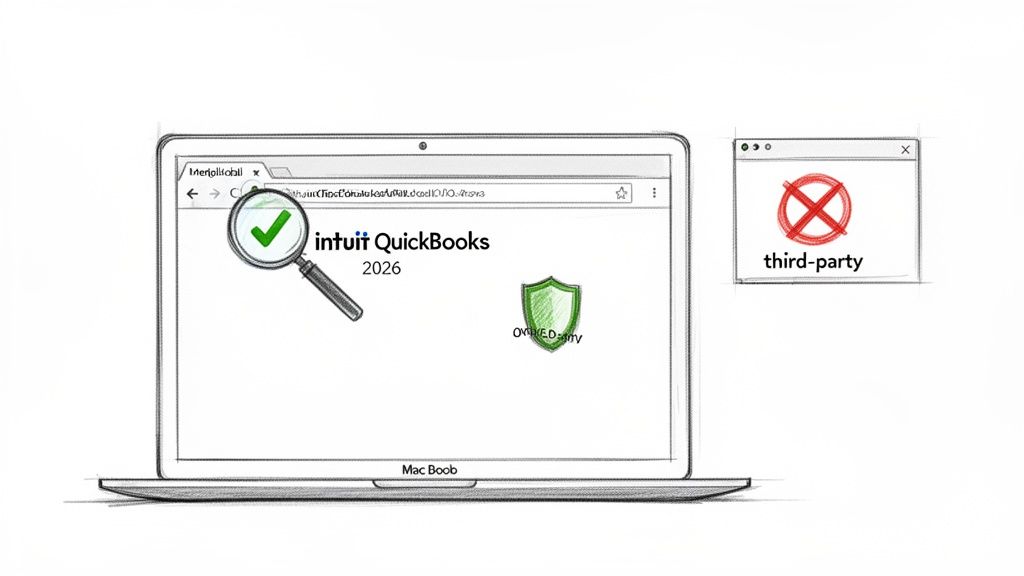
Always go directly to the official Intuit QuickBooks website. You'll know you're in the right spot by checking a few simple things:
- The web address begins with
https://quickbooks.intuit.com. - The site looks professional and uses consistent Intuit branding.
- You are required to sign in with your Intuit account to get to your downloads.
Ensuring Your Version and License Match
Once you're logged in and on the downloads page, here's where people often get tripped up: you have to match the software version to the license you own. If you bought a license for QuickBooks Desktop for Mac 2026, don't download the 2025 version. It won't work, and you'll just run into activation errors later.
Your Intuit account dashboard is your source of truth. It will clearly show which products you've purchased and provide the right download link for each one.
Crucial Security Tip: Never, ever download QuickBooks from a link in an email unless you are 100% certain it came from an official Intuit domain (like
@intuit.com). Phishing scams love to use fake download links to steal login details and financial information.
QuickBooks is a huge target for scammers precisely because it's so popular. Its market share can hit an incredible 84.27% in certain business segments, and with around 29 million users worldwide, it's the undisputed leader for a reason. You can read more about its dominance in these QuickBooks market share insights from ACE Cloud Hosting.
This massive user base is exactly why you have to be vigilant. Making sure your download comes from the official source isn't just a suggestion—it's a non-negotiable security step.
Is Your Mac Ready for QuickBooks?
Before you even click that download button, let's do a quick pre-flight check on your Mac. I’ve seen countless people run into frustrating installation errors, and most of them could have been avoided by taking a few minutes to check system compatibility first.
Think of it this way: just because you have a Mac doesn't mean it's automatically ready to handle demanding accounting software. An underpowered or outdated machine can lead to sluggish performance, unexpected crashes, and a whole lot of wasted time.
Key System Requirements
For QuickBooks Desktop for Mac 2026, Intuit has laid out some clear benchmarks. The biggest one is the operating system—your Mac absolutely must be running macOS Sonoma 14 or a newer version. If you're still on Ventura or an older OS, the installation will fail. This is probably the most common roadblock people hit.
You'll also need at least 8 GB of RAM and about 1 GB of free disk space just for the application. And don't forget your internet connection. You need a stable, high-speed connection not just for the download, but for the critical activation and registration steps that follow. A spotty connection can corrupt the file or kill the activation mid-process.
To make it easier, here’s a quick-glance table to see if your machine is up to the task. While meeting the minimums will get you running, I always suggest aiming for the recommended specs for a much smoother experience.
QuickBooks Desktop for Mac 2026 System Requirements
| Component | Minimum Requirement | Recommended Specification |
|---|---|---|
| Operating System | macOS Sonoma 14 | macOS Sonoma 14 or newer |
| Processor | Intel or Apple Silicon CPU | Apple M1 chip or newer |
| RAM | 8 GB | 16 GB |
| Disk Space | 1 GB (plus company file) | SSD with at least 5 GB free |
| Internet | Required for registration | Stable, high-speed connection |
| Screen Resolution | 1280x800 | 1440x900 or higher |
Ultimately, matching the software's needs to your hardware's capabilities is the first step to a successful setup.
QuickBooks is a powerful tool for many, but its general business focus isn't always a fit for specialized needs. For churches with specific reporting requirements, we highly recommend Grain Ledger, which is specifically designed for fund accounting. Our guide on software for church finances explores why this is so important.
If you're in the market for a new machine and weighing your options, understanding the performance differences is key. If you're wondering whether a MacBook Air can handle the workload or if a Pro is necessary, this guide on choosing the right Apple laptop offers some great insights.
A Visual Guide to Installing and Activating QuickBooks
Alright, you’ve got the right QuickBooks download for Mac file and confirmed your system is good to go. The good news is that the installation part is refreshingly simple. Intuit has clearly put effort into making the Mac process visual and intuitive, avoiding the complex setup wizards you might see with other software.
First, find the downloaded .dmg file, which is almost always in your Downloads folder. Double-click it. A new window will pop up showing the QuickBooks icon right next to a shortcut for your Applications folder.
What comes next is a classic Mac move: just click and drag the QuickBooks icon over to the Applications folder icon in that same window. That’s it. This action copies the program where it needs to live. A small progress bar will show the files moving, but it’s usually over in just a few seconds.
This visual flow breaks down the key system specs you need for a hassle-free QuickBooks experience.
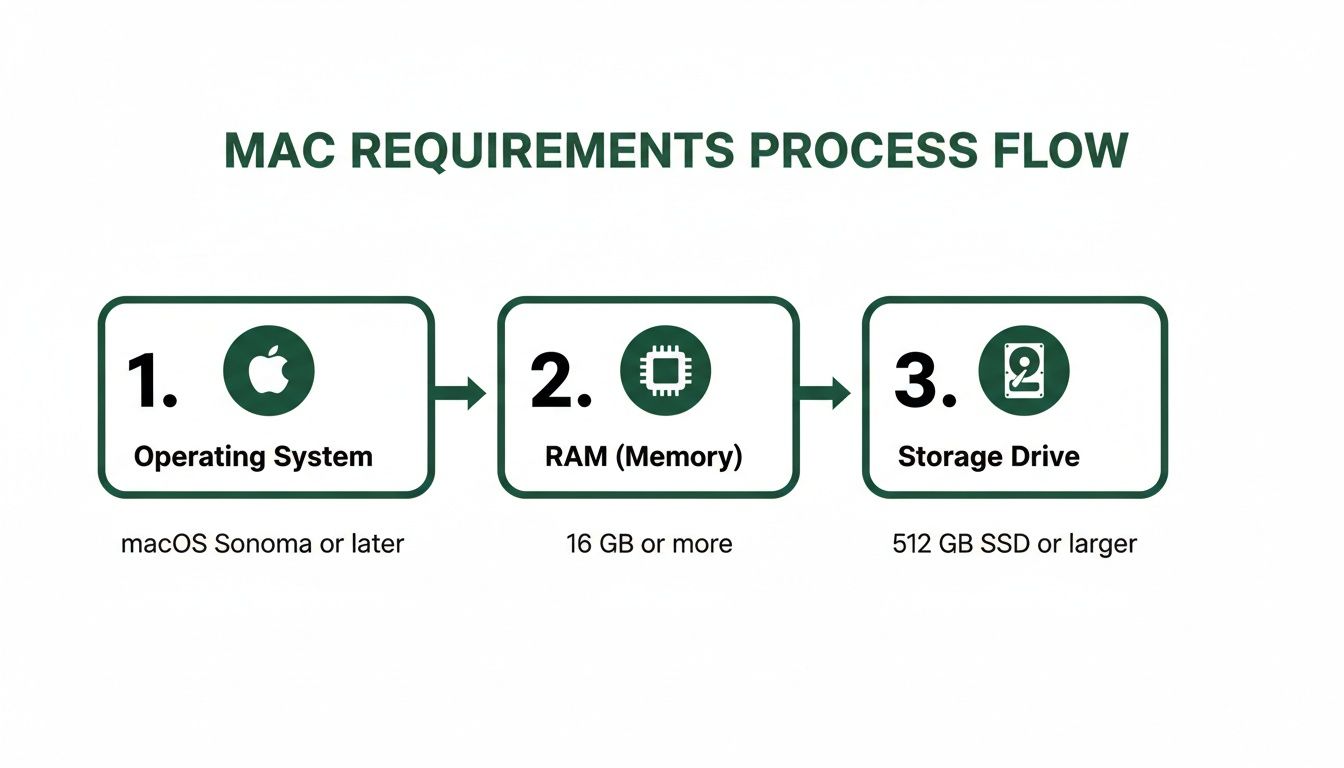 As you can see, a compatible operating system, enough RAM, and sufficient storage are the three pillars for a solid installation.
Activating Your QuickBooks License
Now that the software is installed, go into your Applications folder and launch QuickBooks. The very first time you open it, you’ll be prompted to start the activation process. This is where you’ll need to grab the License and Product numbers you received in your purchase confirmation email or find in your Intuit account.
Simply enter those numbers when asked, and the software will verify your purchase.
Pro Tip: If for some reason the activation window doesn't show up on its own, don't worry. You can kickstart the process manually. Just go to the Help menu inside QuickBooks and choose Register QuickBooks.
This polished user experience is one reason the platform continues to dominate the market. The numbers speak for themselves—QuickBooks Online brought in US$8 billion in 2023. Even the Desktop version, which you're installing now, accounted for a substantial 14% of Intuit's total revenue. You can dig into more of these figures in ElectroIQ's deep dive on QuickBooks performance statistics.
While QuickBooks is a fantastic tool for most businesses, its one-size-fits-all approach isn't always perfect for organizations with specific needs, like churches. Ministries often grapple with managing designated donations and restricted funds, a task that requires true fund accounting.
For that very reason, we always recommend a purpose-built solution like Grain Ledger. It’s designed from the ground up to handle the unique financial tracking needs of churches, providing the kind of clarity on segregated funds that general accounting software just can't offer.
Solving Common QuickBooks Installation Problems
It’s a frustrating moment. You’ve gone through the whole process of finding the right QuickBooks download for Mac, you run the installer, and… nothing. Or worse, you’re greeted with a vague "Installation failed" message. It happens, but thankfully, the fix is often something you can handle yourself without a lengthy support call.
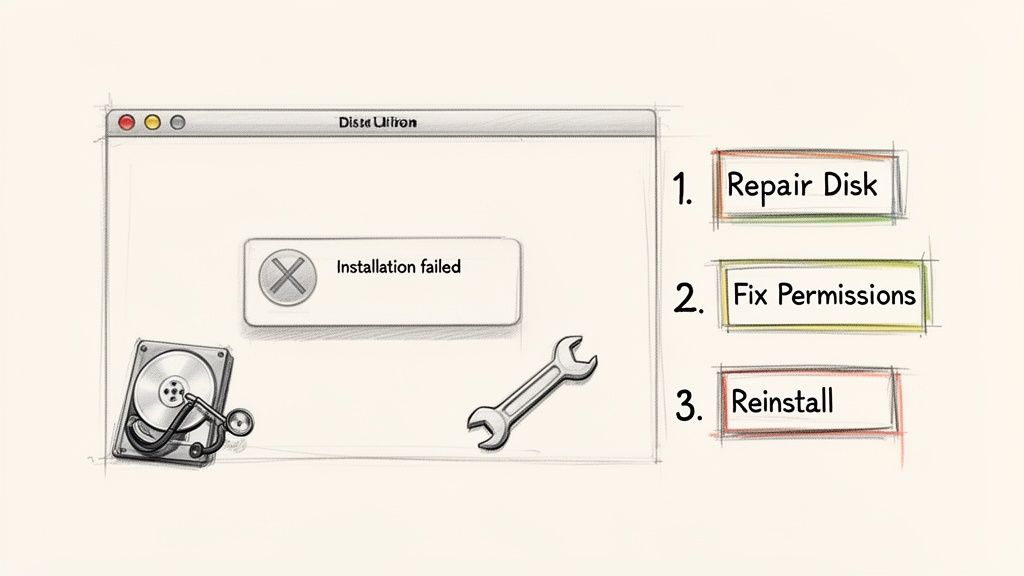
From my experience, the first thing to check is the download file itself. If your internet connection hiccuped for even a second during the download, the installer file (.dmg) can become corrupted. The easiest fix is to just start over: delete the file, clear out your browser's cache, and download it a fresh copy directly from your Intuit account.
Sometimes the issue isn't the file, but your Mac's security settings. macOS can be protective, occasionally blocking an installer from writing the files it needs. This can look like a freeze-up or a permission error.
A fantastic first-aid trick for all sorts of Mac weirdness, including install failures, is to run Disk Utility. You can find it in your
Applications > Utilitiesfolder. Just select your Mac's main drive and click "First Aid" to find and fix underlying permission issues.
When Old Installations Cause New Problems
Are you upgrading from an older version of QuickBooks? I've seen countless cases where leftover files from a previous installation cause conflicts with the new one. The most reliable solution here is a "clean" installation, which means you need to completely remove the old version before trying again.
To give your new installation a truly fresh start, here’s what you need to do:
- Trash the App: First, find the old QuickBooks application in your Applications folder and drag it straight to the Trash.
- Hunt for Leftover Files: Next, navigate to the
Libraryfolder in your user directory. Look for any folders with "Intuit" or "QuickBooks" in the name and move those to the Trash as well. - Restart and Re-Install: With all the old files gone, empty the Trash and give your Mac a quick restart. Now, you should be able to run the new installer without any conflicts.
Following these troubleshooting tips usually clears up the most common installation roadblocks. For more tips on keeping your software in top shape, check out our guide on how to update QuickBooks.
Why Churches Need a Better Solution Than QuickBooks
While QuickBooks is the gold standard for countless businesses, it often creates more problems than it solves for churches. The issue isn't that it's bad software—it's that it wasn't built for fund accounting. This is the specific accounting method ministries rely on to manage designated donations and prove good stewardship.
Because the feature isn't native, church staff and volunteers are forced to invent complicated workarounds just to track restricted funds. When a donor gives to the building fund, you need to know that money is locked in for that purpose. With QuickBooks, you're constantly fighting the system to make that happen, which can lead to messy reports and a sinking feeling of uncertainty about the numbers.
QuickBooks is a powerhouse, adding over 73,000 new companies in 2023 alone. But its one-size-fits-all design means churches have to bend their processes to fit the software, not the other way around.
Introducing a Purpose-Built Alternative
This is exactly why we always recommend Grain Ledger for churches. It's an accounting platform built from the ground up with ministries in mind. Unlike the frustrating tweaks needed after your QuickBooks download for Mac, Grain has fund accounting at its very core.
Imagine every dollar from giving platforms like Pushpay or Planning Center flowing automatically into its designated fund—no manual sorting or complex journal entries required. That missions offering is instantly separated from the general budget. This gives pastors and boards genuine, real-time clarity.
For many congregations, specialized tools are simply a better fit for their unique operational needs. A guide to the 12 Best Church Software for Small Churches highlights several options, but for accounting, Grain Ledger is purpose-built for ministry first.
This fundamental difference is what enables true financial stewardship and accountability. If you’re tired of wrestling a generic business tool, you're not alone. We take a closer look at this common struggle in our article on using QuickBooks for churches.
Compare platforms in our best church accounting software guide for 2026, or review Grain Ledger church accounting software.
Related church accounting software resources
If you are comparing software, these pages map the main decision points: fund accounting, QuickBooks limits, pricing, and migration.
- Best church accounting software (2026 comparison) - canonical guide comparing 12 church accounting platforms
- Church accounting software product page - see Grain Ledger for fund accounting, giving, and bank reconciliation
- Small church accounting software - see the product page built for volunteer treasurers and church admins
- Fund accounting features - review how Grain Ledger tracks designated funds
- QuickBooks for churches - understand workarounds and when to switch
- Free church accounting software - compare free options and upgrade triggers
- Grain Ledger pricing - compare plans for small and growing churches
- Start free - try fund accounting, giving imports, and bank reconciliation together
Got QuickBooks on Your Mac? Let's Tackle Some Common Questions
Alright, you've made it through the installation. Getting new software up and running is one thing, but making it work for your business is another. Let's walk through a couple of the most common hurdles people face right after setting up QuickBooks for Mac.
A big one I see all the time is moving a company file from a Windows PC over to a Mac. Good news: yes, you can absolutely do this. Intuit provides a built-in utility specifically for creating a Mac-compatible backup file.
Just be sure to create a fresh backup of your Windows file before you start the migration. While the conversion is usually smooth, I have seen some quirky issues pop up, especially with heavily customized reports. It’s always better to have a safety net.
Navigating Licenses and Platform Choices
If you've used QuickBooks for a while, the new licensing can be a bit of a curveball. Starting with the 2026 version, QuickBooks Desktop for Mac has moved to an annual subscription. The days of the one-time purchase are gone, so you’ll need to factor this recurring cost into your yearly budget.
This change often sparks a bigger debate: should you stick with Desktop or move to QuickBooks Online? There’s no single right answer, as it really boils down to how you operate.
- QuickBooks Desktop is still the powerhouse for businesses that need deep, complex inventory management or job costing features. It’s perfect if you primarily work from one dedicated computer.
- QuickBooks Online is built for flexibility. If you need your team to access the books from different locations or want the convenience of logging in from anywhere, this is your best bet.
Think about your daily workflow. Do you value the raw, localized power of a desktop application, or is remote access and collaboration non-negotiable? Your answer will point you to the right platform.
For churches, however, neither of these options is a perfect fit. If you're struggling with workarounds for fund accounting, we always recommend looking at Grain Ledger. It’s designed from the ground up for true fund accounting, which can save you a world of headaches.
Ready to simplify your church finances?
Start free with church fund accounting, or watch a product demo first.