How to Update QuickBooks Flawlessly A Church Treasurer's Guide
Learn how to update QuickBooks safely. Our guide helps church treasurers avoid common errors and protect financial data during desktop and online updates.
For any church treasurer, learning how to update QuickBooks is far more than a simple IT task. I see it as a core practice of good financial stewardship. When updates are put on the back burner, it can ripple into reporting errors, tangled fund accounting, and even security risks that put ministry funds in a vulnerable position.
See Grain Ledger for your church
Fund accounting, giving integrations, and bank reconciliation in one platform. Free migration support for churches switching from QuickBooks or Aplos.
Treating updates as optional is a mistake. Getting this right is fundamental to protecting your church’s financial integrity.
Why Keeping QuickBooks Updated Is A Stewardship Imperative
Keeping your church’s financial software current is non-negotiable for transparency and accountability. An outdated program isn't just a minor headache; it can cause real problems that directly impact your ministry's mission and credibility.
Think about it. You’re likely managing several restricted funds for missions, the youth group, or a building campaign. I've seen firsthand how an older, unpatched version of QuickBooks can mis-track these designated funds. This quickly spirals into serious compliance issues and can erode the trust you've built with donors.
The Real Cost Of Delayed Updates
Procrastinating on updates leaves your church’s financial data exposed. Intuit regularly pushes out patches that fix bugs, shore up security holes, and keep the software compliant with the latest financial regulations. For any church using QuickBooks Payroll, these updates are absolutely mandatory—they contain the critical tax table revisions needed to process payroll correctly.
This isn't a theoretical problem. With QuickBooks Desktop still dominating the market—holding a massive 62.23% share for small business accounting—countless organizations, including churches, are put at risk when they fall behind. It's a widespread issue. Eventually, Intuit stops supporting older versions altogether, leaving you without any patches or support.
Think of it this way: staying current reframes the update process from a technical chore into a core stewardship duty. It’s about protecting the resources God has entrusted to your ministry and ensuring every dollar is accounted for with integrity.
Protecting Your Church's Financial Integrity
The benefits go far beyond just fixing bugs. Timely updates ensure that the features your church depends on every day, like bank feeds and third-party app integrations, continue to run without a hitch. That consistency is essential for having an accurate, real-time view of your financial health.
Ultimately, knowing how to properly update QuickBooks is a key skill for any church administrator or treasurer. It has a direct impact on:
- Fund Accounting Accuracy: Correctly tracking and reporting on restricted donations is vital.
- Payroll Compliance: It keeps your employee payments and tax filings accurate and on schedule.
- Data Security: This is your first line of defense in protecting sensitive financial data from cyber threats.
Of course, keeping the software current is only half the battle; the books themselves have to be meticulously maintained. Many churches find value in exploring professional QuickBooks bookkeeping services to ensure their records are always accurate and audit-ready. For those looking for a system designed specifically for ministries, we recommend a purpose-built software like Grain Ledger, which offers native fund accounting that can eliminate many of these update-related headaches from the start.
Your Pre-Update Checklist for Protecting Church Finances
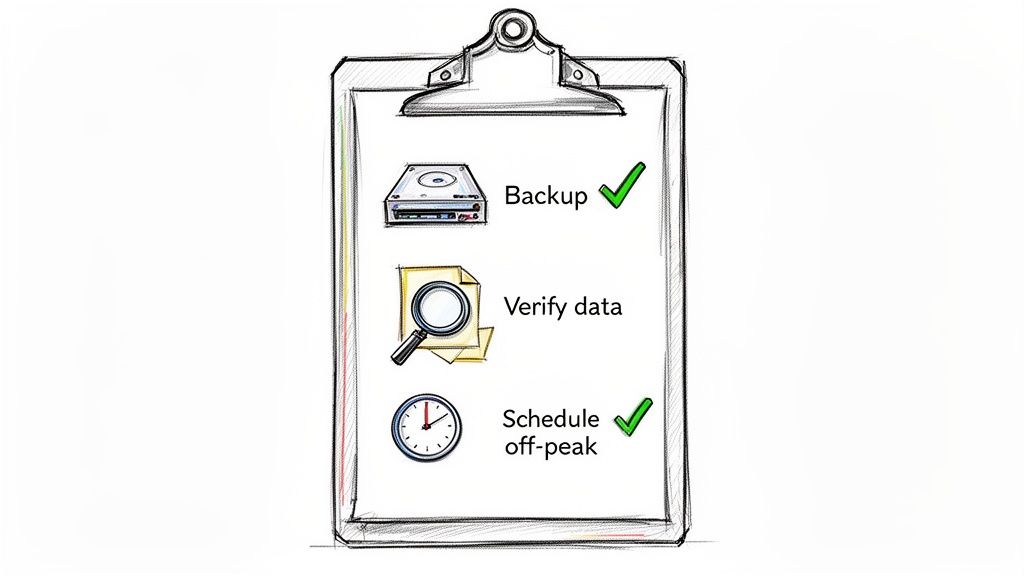 A smooth QuickBooks update doesn’t start when you click “Install.” It starts with careful preparation. For a church, where every transaction represents a tithe, a designated gift, or a ministry expense, that preparation is an essential act of stewardship.
I've seen it happen too many times: a rushed update leads to corrupted data or a failed installation, causing major headaches. A few simple checks beforehand can prevent almost all of these issues. Think of this as your financial pre-flight check.
Backup Your Company File First
Before you do anything else, back up your company file. This is your absolute, non-negotiable first step. A backup is a complete snapshot of your church's books, and it’s your only escape hatch if the update goes sideways. If something goes wrong, you can restore this file and be right back where you started, with zero data loss.
To create a backup in QuickBooks Desktop, just go to the File menu, select Back Up Company, and then choose Create Local Backup.
The key here is to save this backup file somewhere safe and separate from your main computer. Use a dedicated USB drive, an external hard drive, or a secure network folder. If your computer’s hard drive fails during the update, a backup saved on that same computer is useless.
A solid pre-update routine is the bedrock of good financial management. It's a critical part of documenting sound financial business processes for your church, creating a blueprint you can follow for any future software changes.
Verify Company File Integrity
Over time, tiny, invisible errors can creep into your QuickBooks data. You'd never notice them in your day-to-day work, but these little hiccups are one of the leading causes of failed updates.
Thankfully, QuickBooks has a built-in tool to scan for and fix these issues before they become a real problem. It’s a simple preventative measure that dramatically increases your chances of a successful update.
- In the File menu, hover your mouse over Utilities.
- Click on Verify Data from the submenu.
- QuickBooks will then run a check on your file. If it reports any problems, you'll need to run the Rebuild Data tool (found in the same Utilities menu) to have QuickBooks fix them automatically.
Running this check gives you confidence that your company file is clean, stable, and ready for the update.
Plan and Communicate Downtime
When you choose to run the update is just as important as how you do it. The last thing you want is to start an update right after the weekend service when you’re trying to enter offerings, or in the middle of a payroll run.
The best time is during a slow period—maybe a quiet weekday afternoon or in the evening. Pick a time with the least amount of financial activity.
And don't forget to communicate! Send a quick email to staff and key volunteers who might need access to the books. Let them know QuickBooks will be offline for an hour or two for maintenance. This simple heads-up prevents confusion and stops anyone from trying to work in the file while you’re in the middle of updating it. This is especially vital when dealing with time-sensitive tasks like payroll; for more on that, you can review our guide on how to manage direct deposits in QuickBooks.
When it comes to updating QuickBooks, you have two main paths: letting it happen automatically or taking the reins yourself. Choosing the right one for your church really boils down to how much control you want and when you can afford even a few minutes of downtime.
For some, letting QuickBooks handle updates automatically is a huge relief. It’s one less thing on your plate. For others, the thought of an update popping up in the middle of processing payroll or entering the weekend’s tithes is a non-starter. In that case, doing it manually is the only way to go.
The Simplicity of Automatic Updates
If you prefer a hands-off approach, setting up automatic updates is your best bet. This tells QuickBooks to quietly download new patches in the background whenever they’re released. Don’t worry—it won’t install anything without asking you first.
All it does is get the file ready. The next time you open QuickBooks, you'll see a small prompt asking if you're ready to install. You can either approve it right then or tell it to remind you later. It’s a great way to make sure you’re always protected without having to think about it.
To get this set up:
- Head to the Help menu and choose Update QuickBooks Desktop.
- Click over to the Options tab.
- Just select Yes to enable automatic updates.
- Click Save, and you're all set.
This is the method I recommend for most churches, as it takes the guesswork out of keeping your software secure and running smoothly.
Taking Control with Manual Updates
Sometimes, you need to be in the driver's seat. A manual update lets you decide exactly when to install changes, which is perfect for avoiding disruptions. You can schedule it for a quiet Tuesday afternoon or a dedicated maintenance day, ensuring it doesn't interfere with critical financial tasks. This is also the best way to go if you're managing several computers and need them all to update in sync.
The process is just as simple. Go to the Help menu and select Update QuickBooks Desktop. From there, click the Update Now tab and then Get Updates to start the download.
Once the files are downloaded, QuickBooks will prompt you to install them the next time you close and reopen the program. Here’s a pro tip from years of experience: always right-click the QuickBooks icon on your desktop and select Run as administrator before you restart to begin the installation. This one small step can prevent a host of permission-related headaches. A final computer restart after the update is complete is always a good idea, too.
It's tempting to put these updates off, but the consequences can be genuinely disruptive. With 84.27% of small business accounting happening on QuickBooks, you’re not alone, but that also means you’re subject to the same risks. In fact, an estimated 12% of users skip updates each year, which can lead to major compatibility and security problems. We saw this in 2024, when over 5,200 nonprofit penalty cases from the IRS were linked back to software glitches—many of which could have been avoided. You can dig into these trends in this comprehensive software usage report.
What About QuickBooks Online?
If your church uses QuickBooks Online, you can forget everything I just said. The update process is completely different because, well, there isn't one for you to manage. Intuit handles all the updates on their end, automatically. You just log in and enjoy the new features.
This is one of the biggest advantages of cloud-based software. It completely removes the need for manual installations, pre-update backups, or planned downtime.
Of course, even with seamless updates, the software still has to work for your unique needs. For churches, QuickBooks often struggles to handle true fund accounting correctly. That's where we always recommend a purpose-built system like Grain Ledger. It's designed specifically for the fund-based accounting that ministries rely on, which can eliminate many of the workarounds and stresses that come with adapting generic business software in the first place.
Verifying Your Update and Fixing Common Errors
So, you’ve run the update, and the progress bar has finally hit 100%. Don’t close everything out just yet. In my experience, the most important part of any update happens after the installation is done. This is where you double-check that everything is still working right and prevent nasty surprises from popping up in your church’s financial workflow later on.
The moment QuickBooks restarts, the first thing I always do is confirm the update actually took. It’s a simple but crucial step. Just hit the F2 key on your keyboard to pop open the Product Information window. You'll see the current version and release number. Compare this to the latest release details on Intuit's support site to make sure they match.
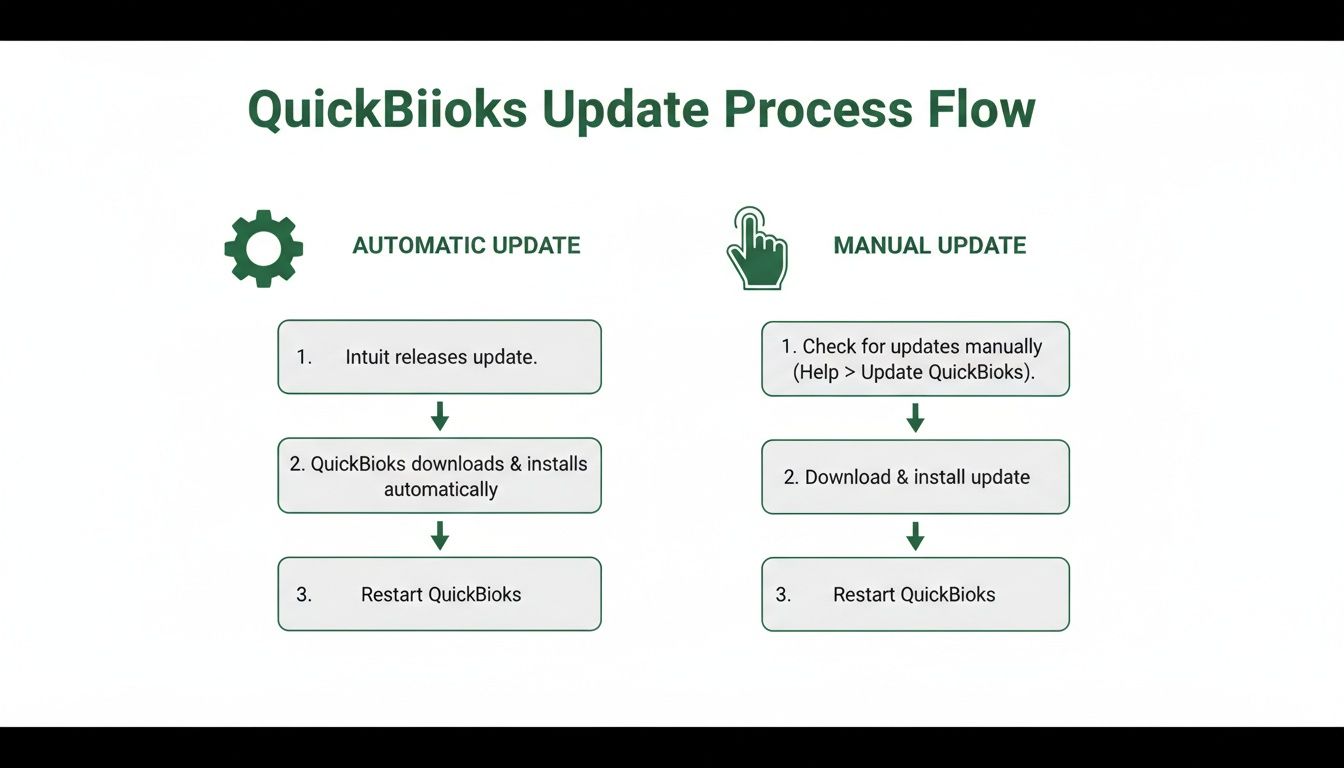
Whether you went with the automatic update or handled it manually, the verification process from here is exactly the same—and it's not something you want to skip.
Your Post-Update Verification Checklist
Once you've confirmed the new release is installed, it's time to kick the tires. You can't just assume everything is working. You need to actively test the features your church depends on every day.
- Test Key Reports: Pull up a few of your most critical reports. For a church, this is almost always the Statement of Financial Position and a detailed Fund Balance report. Do they load correctly? Does the data look right?
- Check Bank Feeds: Head over to the bank feeds section. Are transactions still pulling in from your bank? Updates are notorious for occasionally disrupting these connections, and a quick check now can save you a ton of manual entry later.
- Verify Third-Party Integrations: If your QuickBooks syncs with an online giving platform like Pushpay or a church management system, this is a big one. Make sure those connections are still live and that data is flowing between the systems as expected.
A thorough post-update check is about more than just convenience; it’s about protecting the integrity of your financial records. This simple verification routine is a key part of maintaining a solid definition of an audit trail, which is the bedrock of good stewardship.
Troubleshooting Common Update Errors
Even when you do everything by the book, QuickBooks can throw a curveball. If you’ve been using it for any length of time, you’ve probably seen the vague "Update failed" error. More often than not, this is due to an unstable internet connection or an overzealous security program blocking the download. A quick fix is to temporarily disable your antivirus software and try running the update again.
Another classic is the "company file is in use" error, which stops the update in its tracks. This just means a background process of QuickBooks didn't shut down correctly. The fastest way to solve this is usually the simplest: just restart your computer. This forces all QuickBooks components to close completely, clearing the way for the update.
If you start noticing strange behavior or features that are suddenly buggy after an update, you might be dealing with corrupted cache data. In some cases, clearing the application's cache can fix it, but for more stubborn issues, a full, clean reinstall of QuickBooks might be the only way to get things back to normal.
For churches trying to manage complex fund accounting, this cycle of updating and troubleshooting can feel like a constant headache. It’s one of the main reasons we always recommend a more streamlined solution like Grain Ledger for ministries. Since it was built specifically for church accounting, it completely sidesteps these manual update hassles. Its native fund accounting and built-in integrations create a much more stable and stress-free financial environment.
Fund Accounting Without the Update Headaches
Let's be honest—that little QuickBooks update notification can feel like a pit in your stomach. For many church treasurers, the cycle of backing up data, running the update, and then troubleshooting the aftermath has become a frustrating, time-consuming ritual. It’s a constant distraction from the real work: managing the ministry's finances.
The heart of the issue isn't really the update itself. It’s that generic business software was never designed to handle the unique demands of fund accounting. You're forced to rely on workarounds—like using the Class feature or setting up separate, clunky bank accounts—just to track restricted funds. These systems are often fragile and can easily break or spit out confusing reports after a major software patch.
Escaping the Workaround Treadmill
This is where a simple update can turn into a full-blown crisis. When a patch disrupts the delicate fund tracking system you’ve spent months building, the stakes are incredibly high. Suddenly, you’re spending hours trying to fix reports, re-categorize countless transactions, or untangle a messy web of classes.
I've seen it happen time and again. A treasurer prepares to present a clear financial picture of the missions fund to the board, only to discover the reports are complete nonsense after the latest update. A quick look through Intuit's own support forums shows this isn't an isolated problem. Users regularly report features malfunctioning and workflows breaking down, turning tasks that once took minutes into hours of frustrating work.
The constant stress of software updates isn't just a technical problem; it's a stewardship problem. Every hour you spend fighting with your accounting software is an hour you can't spend on strategic financial planning for your church's mission.
There is a better way, and it doesn't involve another clever workaround or an even more complex chart of accounts. The real solution is moving to a system built from the ground up with true fund accounting at its core.
A Purpose-Built Solution for Churches
This is precisely the problem Grain Ledger was built to solve. It completely eliminates the need to "simulate" fund tracking because its entire system is designed around how churches actually manage money. Fund accounting isn't just a feature; it’s the foundation.
- True Fund Architecture: From the very beginning, every donation and expense is intrinsically tied to a specific fund. No more classes, no more workarounds, and no more broken reports after an update.
- Automated Donation Flow: Through direct integrations with giving platforms like Pushpay, every online gift automatically flows into the correct, truly restricted fund. A donation for the building campaign goes straight to the building fund—with zero manual data entry.
- Effortless Reconciliation: Bank transactions are reconciled seamlessly against your records. This provides instant clarity and drastically cuts down the time treasurers spend matching deposits to individual donations.
Church treasurers who make the switch often talk about the overwhelming sense of relief they feel. They no longer dread update notifications. Instead, they have confidence, knowing that their fund-specific reports are always accurate and ready at a moment's notice. You can see a detailed comparison of these methods in our guide to using QuickBooks for church accounting.
By choosing an accounting solution built for your specific needs, you're not just getting better software. You're reclaiming your time and energy to focus on what truly matters: stewarding your ministry's resources with confidence and clarity.
Answering Your Top QuickBooks Update Questions
When it comes to keeping QuickBooks running smoothly, a few questions pop up time and time again. Let's walk through some of the most common ones I hear from church leaders, so you can handle your next update with confidence.
How Often Should I Be Updating QuickBooks Desktop?
As a general rule of thumb, you should be checking for updates at least once a month. Intuit is constantly releasing small patches to fix bugs, tighten security, and occasionally roll out new features. Keeping up with these ensures your software is stable and your church's financial data is protected.
This becomes non-negotiable if you use QuickBooks Payroll. You have to install those updates the moment they're released. It’s the only way to keep your tax tables current and ensure your payroll processing is compliant. The easiest way to manage this? Just set QuickBooks to download updates automatically.
Is It Really A Big Deal If I Skip An Update?
It’s a tempting shortcut, I know, but trust me—it’s not worth the headache later. You might be able to get away with skipping one, but it's a risky habit.
Think of updates as building blocks; they're often cumulative, meaning a new patch might rely on a previous one to work correctly. If you skip too many, trying to install a later one can cause a cascade of errors. Even worse, Intuit eventually sunsets older versions of QuickBooks Desktop. When that happens, you lose access to all connected services—bank feeds, payroll, online bill pay—and, most importantly, critical security patches. Staying current is simply the safest play for your church's data.
What's The Most Common Reason An Update Fails?
From my experience, when a QuickBooks update fails, it almost always comes down to one of two things: user permissions or issues with the company file itself.
First, QuickBooks needs to be run with the proper administrative rights to make changes to its program files. A surprising number of failures happen simply because the user didn't have the right permissions. That's why I always tell people to right-click the QuickBooks icon and choose “Run as administrator” before kicking off an installation.
The other major culprit is underlying data corruption. These are tiny errors that can build up in your company file over time, often without you even noticing. An update can stumble over these errors and fail. This is exactly why we emphasize running the Verify Data utility before you even think about starting an update.
An update can sometimes disrupt the connection with third-party apps, like your online giving platform. After updating, always test these integrations to ensure data is still flowing correctly.
Will An Update Mess Up My Church Giving Platform Integration?
It absolutely can, and this is a huge point of frustration for many church treasurers. A major QuickBooks update can alter its code in ways that break the connection to your online giving provider or church management software.
You have to make it a habit to test these integrations after every single update. Open them up and make sure donations and other financial data are still syncing as expected. A good preventative step is to check with your integration partners beforehand to see if they've certified their software as compatible with the newest QuickBooks release. This is one area where we always recommend a purpose-built system like Grain Ledger—because the integrations are native to their church-focused platform, these kinds of update-related headaches are completely avoided.
Ready to simplify your church finances?
Schedule a demo to see Grain Ledger in action, or sign up for product updates.